LibreAutomate
The application is an integrated scripting environment for creating and executing automation scripts using its automation library and C# programming language.
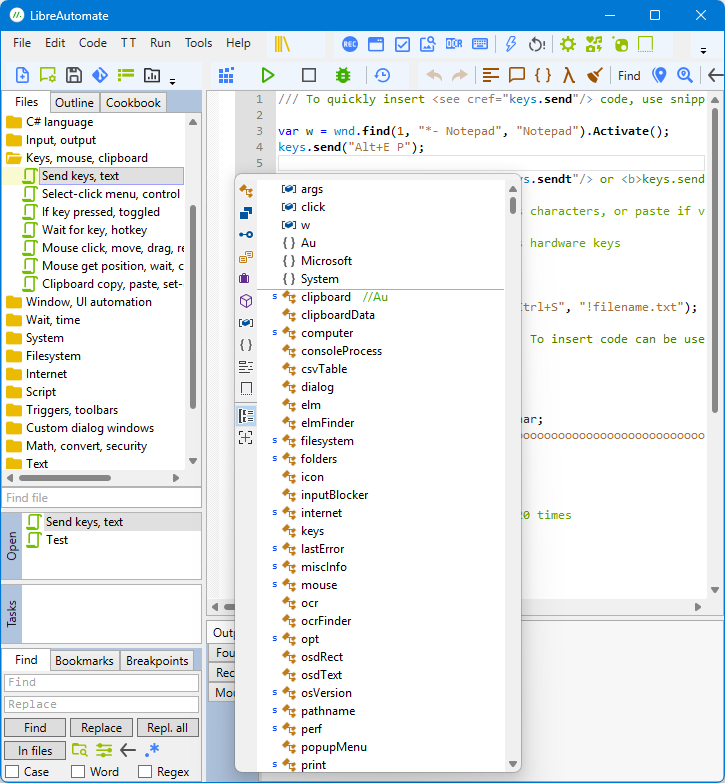
In the main window: code editor, several panels, toolbars and menu bar. Also there is a tray icon. The main window can be hidden (it depends on app settings).
Code editor
Here you edit automation scripts and other text files. Features.
Multiple files can be open, but only one is visible. The list of open files is in the Open panel.
All changes are saved automatically on these events: app deactivated, main window closed, timer. The Save button saves all changes immediately.
Panels
Files
All files and folders of current workspace.
Click an item to open in the code editor. Right-click to show context menu. Middle-click to close. Drag and drop to reorder or add new files.
All changes are saved automatically.
Deleted files and folders are moved to the Recycle Bin if possible.
Yellow background if the file is open in the code editor.
C# code files have .cs extension, but it is hidden.
See file properties.
Files are of these types:
- Script - C# code file that can be executed directly, like a program.
- Class - C# code file that contains classes and functions used by other files.
- Text files - txt, xml and other files that can be edited in the code editor.
- Other files - files that cannot be edited. Images etc. For example can be added to exe program resources.
Folders are of these types:
- Simple folders.
- Folders named like
@Nameare project folders.
The collection of files and folders is a workspace. It is a folder on disk. In the folder:
- Folder
filescontains files and folders of the workspace. - File
files.xmlis the list of files and folders of the workspace. - File
settings.json- workspace settings. - File
bookmarks.csv- saved bookmarks. - Folder
.statecontains code editor states for files, such as folding, markers and current position. - The
.xxxfolders are created and used by the app for various purposes. - Folders
exeanddll- default folders for files created when compiling code files with roleexeProgramorclassLibrary.
Open
List of files open in the code editor.
Right-click - context menu. Middle-click - close.
Tasks
Running scripts.
Right-click - context menu. Middle-click - close.
Find
Find and replace text in the code editor or in multiple files.
Right-click an edit field - context menu. Middle-click - clear text; if empty - show recent.
Found
Results of Find in files, Find file, Find references and some other commands.
Output
The app writes various info here. For example script compilation errors. Scripts use print.it for it.
Right-click - context menu. Middle-click - clear.
Mouse
Mouse x y, window name/class/program, control id/class/name, menu item id.
Outline
Helps to find types, functions, fields, namespaces and regions in current C# code file.
Help
Documentation - table of contents.
Read
Documentation - article.
Bookmarks
List of bookmarks.
Right-click - context menu.
Debug, Breakpoints
Menus
See Menu commands.
Tray icon
Click - show and activate editor window. Right-click - show context menu.
Gray when triggers are disabled.
Customizing
Customize the panel layout
Panels and toolbars can be resized with splitters, moved to another place, grouped in stacks and tab groups, docked, floating, hidden.
Each panel, tab group and toolbar has a header bar. Right-click it to show a customization menu. Also use the menu to show hidden panels. Double-click the bar to toggle floating/docked state; drag to make floating; middle-click to hide.
The splitters between panels have a right-click menu to set splitter width and float/dock/move that stack of panels.
It's saved in %folders.Documents%\LibreAutomate\.settings\Layout.xml. To reset to the default layout, exit LibreAutomate and delete the file.
Customize toolbars, menus and hotkeys
Use the Customize tool. Open it via the Tools menu or right-click a toolbar.
You can add buttons to any toolbar, and change button properties. Default buttons cannot be removed, but can be hidden. To access hidden buttons, click the drop-down arrow in the toolbar. New toolbars can't be added, but there are two initially empty toolbars just for user buttons.
Menu items can't be added/removed/moved, but you can change menu item properties. You can set hotkeys for menu commands.
It's saved in %folders.Documents%\LibreAutomate\.settings\Commands.xml. You can edit the file in an XML editor. To reset everything, delete the file. To reset an item or toolbar, remove it from XML. Restart LibreAutomate.
See also cookbook article Editor extension - modify UI.